Remove the background from a portrait
Cut yourself out of a photo for a CV, LinkedIn, or a profile picture. It works best with one person facing the camera in even light, and your photo is processed on your own device.
Updated · Arunvpp
How to cut out a portrait
- Add your photo. Drop it on the page, choose it from your phone or computer, or paste it with Ctrl+V.
- Check the hair. Drag the slider to compare with the original. If strands look chopped, switch Mode to Best quality.
- Pick a background and download. Keep it transparent, or choose White, Blur, or a Color. Crop to subject trims the empty space.
Getting clean hair and edges
Hair edges can mix strand color with the old backdrop. Compare Fast with Best quality on the same source, especially for curls, buns, and flyaways; the larger model can help but does not guarantee a better outline. Inspect against both black and white. Once the model and runtime are cached, it can work offline while the browser keeps that data.
Light matters more than the camera. A face lit evenly from a window, with the background a few steps behind you, gives the AI a clear edge to follow. Strong backlight, like a bright window behind your head, blurs that edge and can leave a halo around the hair.
If a few spots are wrong, you don't need to start over. Open Touch up, use Erase to remove leftovers, and Restore to bring back an ear, a shoulder, or a strand of hair. Zoom in for small areas, and use Undo if a stroke goes too far.
If the result needs fixing
- Hair has a light halo on a dark background
- Compare Best quality with Fast against Black and White. Erase leftover backdrop in small areas while keeping soft strands that are visible in the original.
- An ear or shoulder is missing
- Use Restore inside Touch up. Paint only the missing part; restoring outside it also brings back the original backdrop.
- The face is too close to the edge of a profile picture
- Try the 1080×1080 preset and inspect the download preview. Keep extra room for the circle that the receiving app may apply.
- Glasses lose a frame or keep part of the room
- Compare the visible frame with the source and Restore only real frame detail. Lenses can contain transmitted or reflected background that a silhouette cutout cannot replace.
Before you download
- Check hair, both ears, glasses, and shoulders against the original.
- Choose PNG with None for a design layer, or JPG with a finished background for a profile picture.
- Inspect the receiving app’s crop before saving the profile picture. A square export does not choose a face-aware crop.
Related technical guides
See what it does
Explore the existing sample comparisons. Try the same input in the editor to check your current result.
Compare the curly-hair sample against black and white, then try Fast and Best quality on the same source. The supplied comparison uses Best quality.
The sample photos are AI-generated; the logo is an illustration. About the samples · Fresh exports and reproduction steps

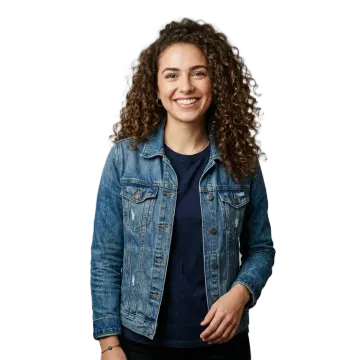 Curly hairBest quality
Questions about portraits
Which background should I use for a CV or LinkedIn photo?
White gives a plain backdrop; Blur keeps a softened version of the source scene. Inspect the profile preview and choose the treatment that suits it. For a form, follow its current photo instructions, including whether background editing is permitted.
Can I remove the background from a group photo?
Usually. The AI keeps what stands out as the subject, which is normally everyone at the front of the photo. People further back or cut off by the edge of the frame may be dropped; bring them back with Restore in Touch up.
How large can my photo be?
The working image is limited to 2048, 3072, or 4096 pixels on its longest side, depending on available memory and processor capacity. Larger inputs are reduced; the editor shows the working dimensions.
Is my photo uploaded?
No. The cutout is made by an AI model running in your browser, so the photo stays on your phone or computer. For offline use, complete a photo in the mode you need while online, reload the site, then test without a connection. Offline use depends on the browser keeping its cached files.