Free AI background remover that works in your browser
Remove photo backgrounds with AI, or clear a plain backdrop from a logo or signature. Check the edges, touch up, and export on your own device. No upload, account, or watermark.
- Free with no daily quota or sign-up
- Your photos never leave your device
- Offline use after the needed files are cached
See what it does
Explore the existing sample comparisons. Try the same input in the editor to check your current result.
The sample photos are AI-generated; the logo is an illustration. About the samples · Fresh exports and reproduction steps
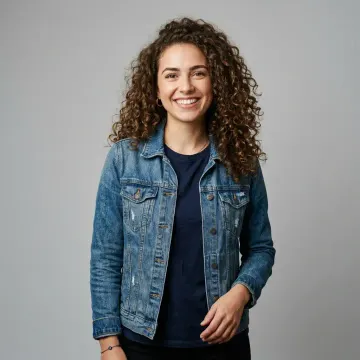
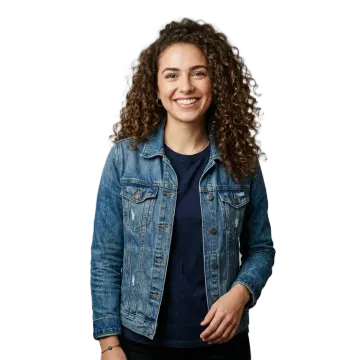 Curly hairBest quality
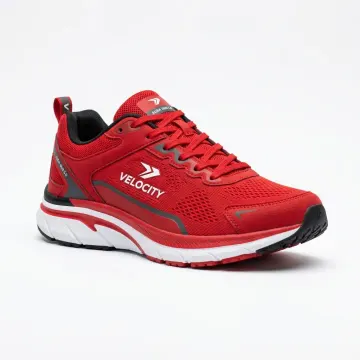
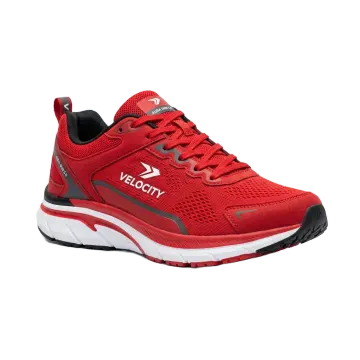 Product shotBest quality

 Signature on paperPlain background · Signature

 Logo on a cardPlain background · Auto
Choose the removal method for your image
Fast
Most photos: people, products, cars.
A smaller 4.4 MB AI model. A useful starting point on devices with limited memory; speed depends on the photo and device.
Best quality
Curly hair, fur, and fine edges.
A larger 94 MB model. It can preserve more fine detail and uses WebGPU when available, with a slower CPU fallback.
Plain background
Logos, signatures, and studio shots on one color.
Removes a backdrop color without downloading an AI model. Auto keeps enclosed shapes; Remove a color and Signature serve different kinds of artwork.
Check what the cutout can preserve
Start with JPG, PNG or WebP. Large images are reduced to a working long side of 2048, 3072 or 4096 pixels according to device capacity. An export preset changes the canvas size; it cannot recover detail lost in the source or mask.
- Fine detail: hair, whiskers, sheer fabric and glass can remain incomplete. Compare Fast and Best quality, inspect the saved file, then correct the mask with Erase or Restore.
- Plain backgrounds: Auto removes matching regions connected to the border. Remove a color also affects enclosed matching regions, including wanted subject colors. The logo test shows the difference in actual exports.
- Transparency: select None and PNG or WebP to keep alpha. JPG is opaque and uses white behind a transparent result. Check formats and dimensions before sending the file elsewhere.
- Batches: select multiple files, choose the batch panel's separate settings, and inspect individual results before saving the ZIP. Device limits are 10, 20 or 40 files. Failed items are not included in the ZIP.
Your photos stay on your device
Most online background removers send your photo to their server. SansBG works the other way round: the AI model comes to your browser, and the cutout is made on your phone or computer.
You don't have to take our word for it:
- Open your browser's developer tools, go to the Network tab, and remove a background. No request carries your image. You'll also see requests for Google's ads; they don't include your image either.
- Process a sample in the mode you need, reload the site, then disconnect and test another image. This checks whether the needed files remain cached for offline use.
Follow the network and offline verification steps. Hosting, model downloads and any advertising still create network requests; local image processing does not make the whole visit offline.
How to remove a background from a photo
- Add a photo. Drop it in, pick one from your device, or paste with Ctrl+V. Select several for a batch.
- Check the edges. Drag the slider to compare. Touch up lets you erase or restore any spot.
- Download. Pick a background, a size, and PNG, WebP, or JPG. Where file sharing is supported, Share sends the result to another app; otherwise download it first.
Start with a specific workflow
Each guide opens the editor with the mode, background, and size that job needs, with tips for that kind of photo.
Get a usable cutout, from source to export
Learn why a background stays inside a letter, how to restore missing detail, and how to check the transparency and size of the file you download.
- Choose a background removal mode
Choose Fast, Best quality, or a Plain background method. Compare the same source and understand model sizes, settings, and device limits.
- Fix cutout edges and choose an export
Repair a cutout with Erase and Restore, inspect soft edges, and follow a final export checklist before closing the editor.
- Troubleshoot a failed or incomplete cutout
Separate file-opening, model-download, memory, and edge problems. Find the next useful check without repeatedly changing unrelated settings.
- Image formats, transparency, and export size
Choose PNG, WebP, or JPG, test a saved file for alpha transparency, and understand working resolution, crop padding, and fixed-size presets.
- Browser AI, privacy, and offline checks
Follow how images, models, and cached files move through SansBG. Check network requests, local history, GPU fallback, and offline availability.
Background remover questions
Is it really free?
Yes. There is no watermark, no account, and no daily limit. Your photos are processed on your own device, so each image costs nothing to run.
Does the tool depend on advertising?
The tool is free to use. Optional Google ads may help cover hosting and model-file delivery when available. Your images are processed locally, and using the tool never requires an ad click or view.
Are my photos uploaded anywhere?
No. The AI runs inside your browser, so your photos never reach a server. If Recent downloads is enabled, it keeps up to 12 results locally. Entries older than 30 days are removed when history is next viewed or saved. You can clear it or turn it off; browser storage can also disappear earlier.
Which mode should I use?
Start with Fast and check the result. Compare Best quality for curly hair, fur, or fine edges. Use Plain background for logos, signatures, and products shot against one color.
Can I use the results for business?
The tool permits commercial use of the output. You still need the rights to the source image, artwork, and any other content you use.
Why was the first photo slower?
An AI mode needs its model and runtime files on first use: about 4.4 MB for Fast and 94 MB for Best quality, plus the runtime. Cached files avoid repeat downloads while the browser keeps them; processing time still depends on your device.
Why do some edges look soft or keep a bit of the old background?
Fine hair, glass, smoke, and sheer fabric are hard for every background remover. Try Best quality, then use Touch up to erase leftovers or bring back parts that went missing.
How do I make a signature transparent?
Sign with a dark pen on plain white paper and photograph it in daylight without shadows. Choose Plain background, then Signature, and download a PNG.
Which files can I use?
Start with JPG, PNG, or WebP. Other formats, including HEIC, depend on your browser’s decoder. Large images are reduced to a working long side of 2048, 3072, or 4096 pixels according to device capacity; the editor shows when this happens.
Does it work offline?
It can, after the needed page, model, and runtime files are cached. Process a sample in your chosen mode while online, reload the site, and test offline before relying on it. Private browsing or clearing site data can remove the cache.
Which browsers does it work in?
Use a modern browser with WebAssembly and web workers. WebGPU can speed up Best quality when supported; otherwise it uses the CPU. File decoding, available memory, and backend support vary, so try a sample before a large job.
Can I remove the background from multiple photos at once?
Yes. Select several photos to open the batch panel. The device profile caps each batch at 10, 20, or 40 files. Choose the batch output settings, process them in turn, and download successful results as a ZIP before closing the panel.
Can I change the background color after removing it?
Yes. After the AI removes the background, pick White, Black, a custom Color, Blur, or even a Photo from your device as the new background before you download.