Cutouts for thumbnails, stories, and posts
Cut yourself out for a YouTube thumbnail, a story, or a reel cover, then save a transparent PNG or a ready-sized image.
Updated · Arunvpp
How to make a cutout for a thumbnail or story
This page opens the editor with the PNG format already selected. You can change any of them.
- Add a photo. Pick one with a clear pose and good light. Big, expressive faces read best on a small thumbnail.
- Choose the output. Keep the background at None for a transparent PNG, or pick 1080×1920 and a background for a ready story.
- Download or share. Place the PNG in Canva, CapCut, or Photoshop. If your browser supports file sharing, use Share; otherwise download the PNG and import it into the destination app.
Sizes for each platform
For a YouTube video thumbnail, compose a 16:9 design in your destination app and check YouTube’s current thumbnail instructions for dimensions, file size, and upload support. This editor provides a cutout layer: download a transparent PNG, place it in your template, and add text and a background there. Inspect the finished design at thumbnail size so the subject and text remain clear.
The 1080×1920 preset provides a tall 9:16 canvas for a story or vertical design, and 1080×1080 provides a square canvas. Both center the cutout with a margin. Check the destination’s current requirements and preview because feed crops, cover displays, and upload limits can differ.
A cutout on a busy design can blend into it. Turn on Drop shadow to lift it off the background, or place the PNG on a plain block of color in your design. Keep the same style from one video to the next, so your thumbnails are easy to recognize.
If the result needs fixing
- The cutout disappears against a busy design
- Try Drop shadow or add contrast in the design app. Check the image at thumbnail size; a detailed edge can look different when reduced.
- The design app receives a white box
- Select None and PNG before downloading. Use the saved PNG rather than copying a screenshot of the editor.
- The subject is awkwardly placed in a story
- The 1080×1920 preset centers the subject. Export a transparent layer and position it in your design app if you need room for text or platform controls.
- A small source looks soft after a large export
- A 1080-pixel or 2000-pixel canvas can enlarge the cutout without adding source detail. Use a larger in-focus source or keep the cutout smaller in the final composition.
Before you download
- Choose a transparent PNG for a design layer or a finished background for a ready-to-use post.
- View the composition at the small size it will have in a feed.
- Check the destination preview for text, interface overlays, and any additional cropping.
Related technical guides
See what it does
Explore the existing sample comparisons. Try the same input in the editor to check your current result.
Try a portrait and a product as separate layers. Each sample has a different outline; inspect both before using the same design treatment.
The sample photos are AI-generated; the logo is an illustration. About the samples · Fresh exports and reproduction steps
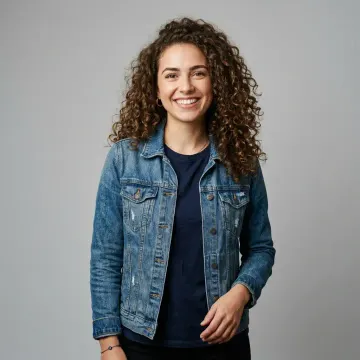
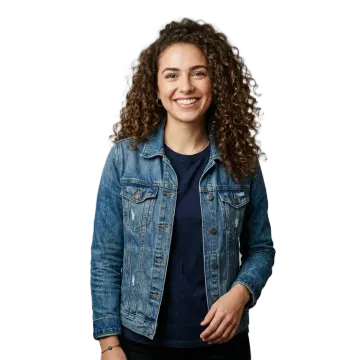 Curly hairBest quality
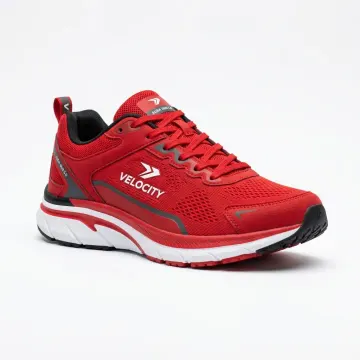
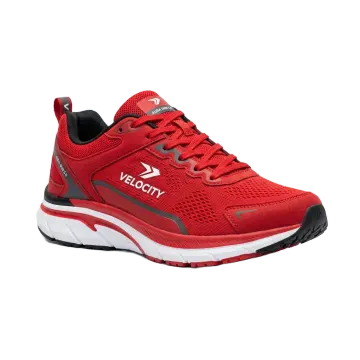 Product shotBest quality
Questions about thumbnails & stories
Why PNG instead of JPG for thumbnails?
PNG keeps the transparency, so your design shows around the cutout. JPG has no transparency and fills the background with white.
Does the download have a watermark?
No. There is no watermark, no account, and no limit on how many images you make.
Can I cut out a product instead of a person?
Yes. The AI works on products, pets, food, and more. For product shots on white, the product photo page starts with that setup.
Which size fits Reels and Shorts covers?
The 1080×1920 preset gives you a 9:16 canvas for a vertical design. Check the destination’s current cover instructions and preview; different surfaces may crop or display the cover differently.
Can I do all of it on my phone?
On a supported mobile browser, you can process a photo and use Touch up with pinch zoom and finger strokes. Use Share when the browser supports file sharing; otherwise download the result and import it into your app. Try a sample first to check device support.