Turn a signature photo into a transparent PNG
Photograph your signature on white paper and turn it into a transparent PNG for PDFs, Word documents, and emails. The paper disappears and the ink keeps its soft edges.
Updated · Arunvpp
How to make a signature transparent
This page opens the editor with Plain background mode set to Signature and the PNG format already selected. You can change any of them.
- Photograph your signature. Sign on plain white paper and take the photo straight on in daylight, with the signature filling most of the frame.
- Adjust Strength. If faint strokes vanish, lower Strength. If gray paper is left behind, raise it.
- Download the PNG. Turn on Crop to subject to trim the empty paper. The PNG keeps the transparency, so the signature sits on any document.
Adding your signature to documents
In Word or Google Docs, insert the PNG as a picture, then set its text wrapping to In front of text. You can then drag it onto the signature line without pushing the text around.
For a PDF, Adobe Acrobat's Fill & Sign can add a signature from an image, and most other PDF editors have an image or stamp tool that works the same way. For email, add the image in your email app's signature settings.
An image of your signature is not the same as a digital signature. It looks like your handwriting, but it doesn't prove who added it. For contracts and official filings, use the signing method the other side asks for, and keep the file somewhere private, since anyone who has it can paste your signature.
If the result needs fixing
- Thin pen strokes disappear
- Lower Strength in Plain background → Signature. If gray paper returns at the same setting, take a new photo with more even light.
- A gray patch survives beside the signature
- Check for a shadow on the paper. Raise Strength slightly, watching the faintest ink; use Touch up to erase an isolated patch.
- The inserted signature has a white rectangle
- Export with None and PNG, then place it over a colored area in the destination document. A PNG exported on White still contains white paper.
- Blue or pale ink becomes faint even when the paper clears
- Signature uses brightness rather than recognizing pen strokes. Try lower Strength and inspect the saved PNG at its intended size. Use darker ink and even light if paper and ink cannot be separated.
Before you download
- Compare every initial, loop, and final stroke with your own handwriting.
- Keep the PNG rather than a screenshot of the preview.
- Store the file privately and use the signing method requested by the recipient.
Related technical guides
See what it does
Explore the existing sample comparisons. Try the same input in the editor to check your current result.
The sample shows dark strokes on light paper in Signature mode. Try a small Strength change and watch the fine stroke ends, not just the empty paper.
The sample photos are AI-generated; the logo is an illustration. About the samples · Fresh exports and reproduction steps
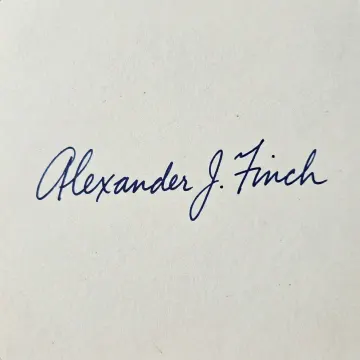
 Signature on paperPlain background · Signature
Questions about signatures
Does it work with blue ink?
Dark blue ink can work, and retained pixels keep their source color. Signature mode changes opacity using brightness, so pale blue ink may fade along with the paper. Lower Strength and compare every stroke with the original.
Why does my signature look gray or patchy?
Usually it is the light. Shadows and uneven light make parts of the paper darker than the faintest strokes. Retake the photo in even daylight, then adjust Strength.
My form wants the signature on white, not transparent. What should I choose?
Choose White under Background and JPG under Format. Application forms often limit the file size or pixel size too, so check the form's rules before you upload.
Is my signature uploaded anywhere?
No. Plain background mode processes the signature image entirely in your browser, without an AI model download. The image is not sent to a server.