White backgrounds for product photos
Prepare a consistent product catalog on a white 2000×2000 canvas. This setup suits solid products, clothing, cars, and jewelry, but each needs different edge checks. Processing stays on your device.
Updated · Arunvpp
How to put a product on a white background
This page opens the editor with White background, the 2000 × 2000 size, and the JPG format already selected. You can change any of them.
- Add the product photo. Drop in one photo, or select several at once to process a batch and download them together as a ZIP.
- Check the edges. Compare with the slider, then use Touch up to erase leftovers, like floor showing through a handle.
- Download. The product is centered on pure white with an even margin. Upload the JPG as your main image.
Build a consistent catalog without hiding defects
The White background is RGB 255, 255, 255. The 2000×2000 preset fits the cutout into a square with at least a 6% margin on each side when Crop to subject is off. A tall bottle and a wide shoe will occupy different amounts of that square: the tool fits their proportions rather than stretching them, leaving more space along the shorter dimension. This preset does not check a marketplace’s listing rules.
For clothing, inspect sleeves, straps, and folds before downloading. Dark folds can be mistaken for empty space, while a hanger may be kept as part of the subject. Restore missing fabric and erase the hanger if your listing should show only the garment. On a car, check gaps between the wheels and the body, and keep real details such as mirrors and antennas.
Jewelry, glass, and polished metal reflect their surroundings. Background removal cannot reconstruct the surface behind a reflection or recover hidden detail. Compare against the original so you do not erase a stone or make an opaque product look transparent. A neutral backdrop and soft light at capture time often help more than another pass of removal.
Try the sneaker sample before processing a catalog. Inspect the sole, lace openings, and the shadow underneath, then download a white JPG and a transparent PNG to compare their uses. For a real catalog, test one representative item with your chosen settings before starting a batch. Keep the source photos so you can correct an individual item later.
If the result needs fixing
- Backdrop remains through a handle or between laces
- Zoom into the opening and use Erase. Keep the handle or lace itself by comparing each stroke with the original.
- Fabric, a gem, or a car mirror disappears
- Use Restore for that part. Do not treat all dark regions as empty space: folds, stones, and reflections can be real product details.
- A glass or metal surface still shows the room
- This is in the source object, rather than only its silhouette. Photograph it against a neutral setting if the reflection cannot be used in the final listing.
- Products occupy different amounts of the same square canvas
- The preset preserves proportions, so a wide shoe and a tall bottle have different empty space. Review a representative item from each shape group; a fixed canvas is not a uniform physical scale.
Before you download
- Compare color, logos, texture, and shape with the source so the cutout still represents the actual item.
- Check the 2000×2000 white JPG preview with Crop to subject off; use None and PNG for a reusable layer.
- Test one representative item before choosing settings for a catalog batch.
Related technical guides
See what it does
Explore the existing sample comparisons. Try the same input in the editor to check your current result.
Use the sneaker sample to inspect the sole, laces, and ground shadow. Compare a white catalog export with a transparent design layer.
The sample photos are AI-generated; the logo is an illustration. About the samples · Fresh exports and reproduction steps
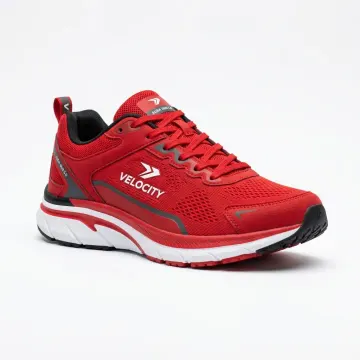
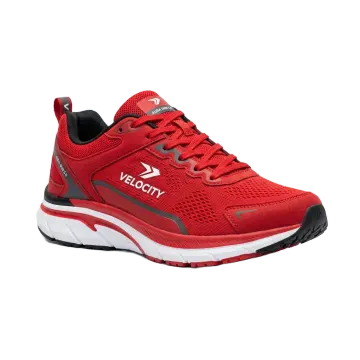 Product shotBest quality
Questions about product photos
Is the white background really pure white?
Yes. White is #FFFFFF, or RGB 255, 255, 255. This sets the background color; it does not certify the finished photo against a marketplace’s requirements.
Can I do a whole catalog at once?
Yes. Select several photos when you add them to open batch mode. Choose White, Marketplace 2000×2000, and JPG, then download everything as one ZIP. Each photo is processed on your own device, one after another.
Should I save PNG or JPG?
JPG is useful for white-background listings when the destination accepts it. Choose PNG or WebP when you need transparency, for example to place the product on a banner in Canva.
Why does my glass or chrome product look odd?
See-through and mirror-like surfaces can show the old scene inside the object. Erasing those pixels makes part of the product transparent; Restore brings the original pixels back. If those colors are unacceptable, reshoot against a suitable neutral setting and check that the result still represents the item accurately.